Top Ads

This is default featured slide 1 title

Go to Blogger edit html and find these sentences.Now replace these sentences with your own descriptions.

This is default featured slide 2 title

Go to Blogger edit html and find these sentences.Now replace these sentences with your own descriptions.

This is default featured slide 3 title

Go to Blogger edit html and find these sentences.Now replace these sentences with your own descriptions.

This is default featured slide 4 title

Go to Blogger edit html and find these sentences.Now replace these sentences with your own descriptions.

This is default featured slide 5 title

Go to Blogger edit html and find these sentences.Now replace these sentences with your own descriptions.

Html Use Attribute

LANG ATTRIBUTE

The language of the document can be declared in the <html> tag.
The language is declared with the lang attribute.
Declaring a language is important for accessibility applications (screen readers) and search engines

Code

<!DOCTYPE html>
<html lang="en-US">
<body>
...
...
...
</body>
</html>

Title Attribute

title attribute is added to the <p> element. The value of the title attribute will be displayed as a tooltip when you mouse over the paragraph

Code

<p title="I'm a tooltip">
This is a paragraph.
</p>


HREF ATTRIBUTE

HTML links are defined with the <a> tag. The link address is specified in the href attribute

Code

<a href="http://www.webtech100.blogspot.com">This is a link</a>

SIZE ATTRIBUTES

The filename of the source (src), and the size of the image (width and height) are all provided as attributes

Code

<img src="webtech100.jpg" width="500" height="230">

ALT ATTRIBUTE

The alt attribute specifies an alternative text to be used, when an image cannot be displayed

Code

<a href="http://www.webtech100.blogspot.com" alt="webtech100.blogspot.comwidth="500" height="230">

HTML Use Paragraphs,Links and Images

HTML PARAGRAPHS

HTML paragraphs are defined with the <p> tag

Code

<p>This is a paragraph.</p>

Output


HTML LINKS

HTML links are defined with the <a> tag

Code

<a href="http://webtech100.blogspot.com/">This is a link</a>

Output


HTML IMAGES

HTML images are defined with the <img> tag.
The source file (src), alternative text (alt), and size (width and height) are provided as attributes

Code

<img src="webtech.jpg" alt="webtech100.blogspot.com" width="500" height="230">

Output


HTML Use Headings

HTML headings are defined with the <h1> to <h6> tags.
<h1>     ----------  >>>>   defines the most important heading.
   .
   .
   .
<h6>     ----------  >>>>   defines the least important heading.


Example

<h1>This is heading 1</h1>
<h2>This is heading 2</h2>
<h3>This is heading 3</h3>
<h4>This is heading 4</h4>
<h5>This is heading 5</h5>
<h6>This is heading 6</h6>

Output


Save and Open the HTML Page

Save the file on your computer. Select File > Save as in the Notepad++ menu.
Name the file "Simple.html" and 

You can use either .htm or .html as file extension Name. There is no difference, it is up to you.


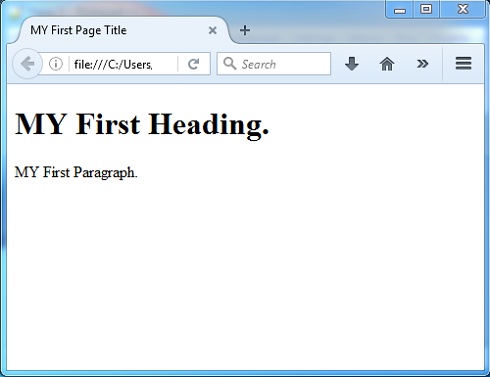
VIEW THE HTML PAGE IN YOUR WEB-BROWSER

Open the saved HTML file in your favorite Web-Browser (double click on the file, or right-click - and choose "Open with").
The result will look much like this:


Write HTML Using Notepad or Notepad++

Follow the four steps below to create your first web page with Notepad or Notepad++.


Step 1: Open Notepad or Notepad++
Open Notepad or Notepad++ in Windows 98,Windows xp,Windows 7,Windows 8,Windows 10 or later:


Open the Start Screen (the window symbol at the bottom left on your screen). Type Notepad or Notepad++.

Open Notepad in Windows 7 or earlier:

Click Start (bottom left on your screen). Click All Programs. Click Accessories. Click Notepad or Notepad++.

STEP 2: WRITE SOME HTML

Write or copy Code some HTML into Notepad or Notepad++.

<!DOCTYPE html>
<html>
<head>
<title>MY First Page Title</title>
</head>
<body>

<h1>MY First Heading. </h1>
<p>MY First Paragraph.</p>

</body>
</html>